I made a cheap scratch built Belt a Gizmo some months ago using a couple old circuit boards, miscellaneous craft parts and LEDs. When I found myself needing to build another, I decided to go with the kit offered by spongeface. Just received my shipment this week and I find myself in complete awe. This thing is EPIC!
The instructions included are quite good so I won’t cover each step in detail, but will provide photos and comments for the major phases.
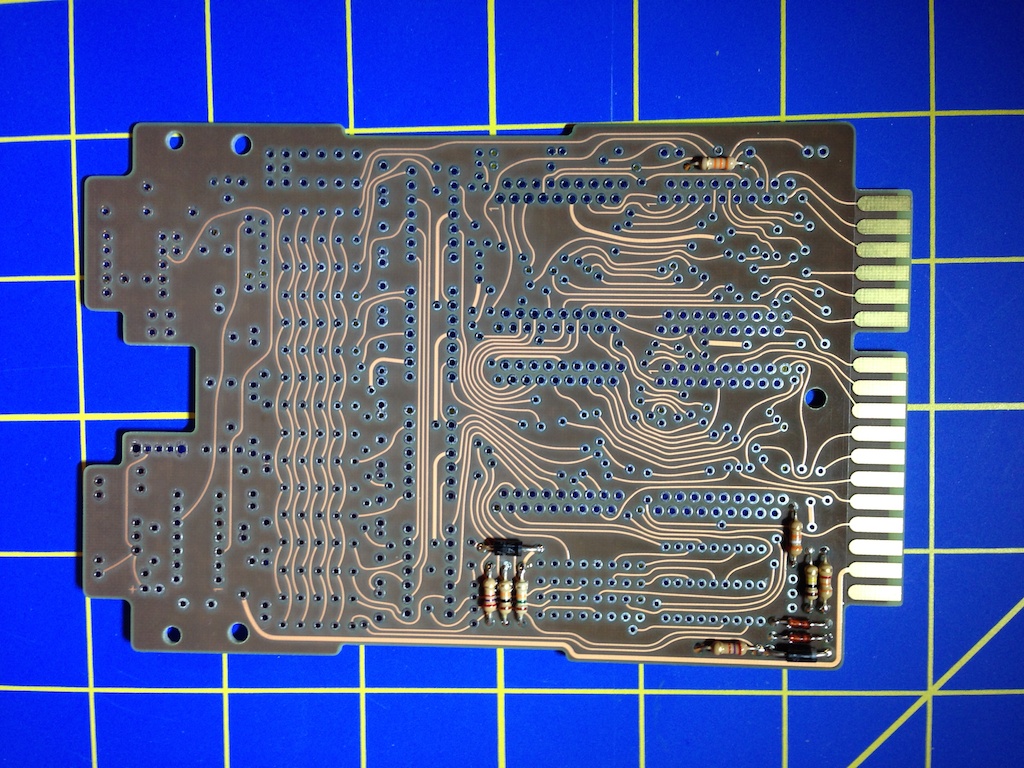
First up, several resistors and diodes are soldered to the board. This is straightforward, easy and provides a good practice session for soldering.
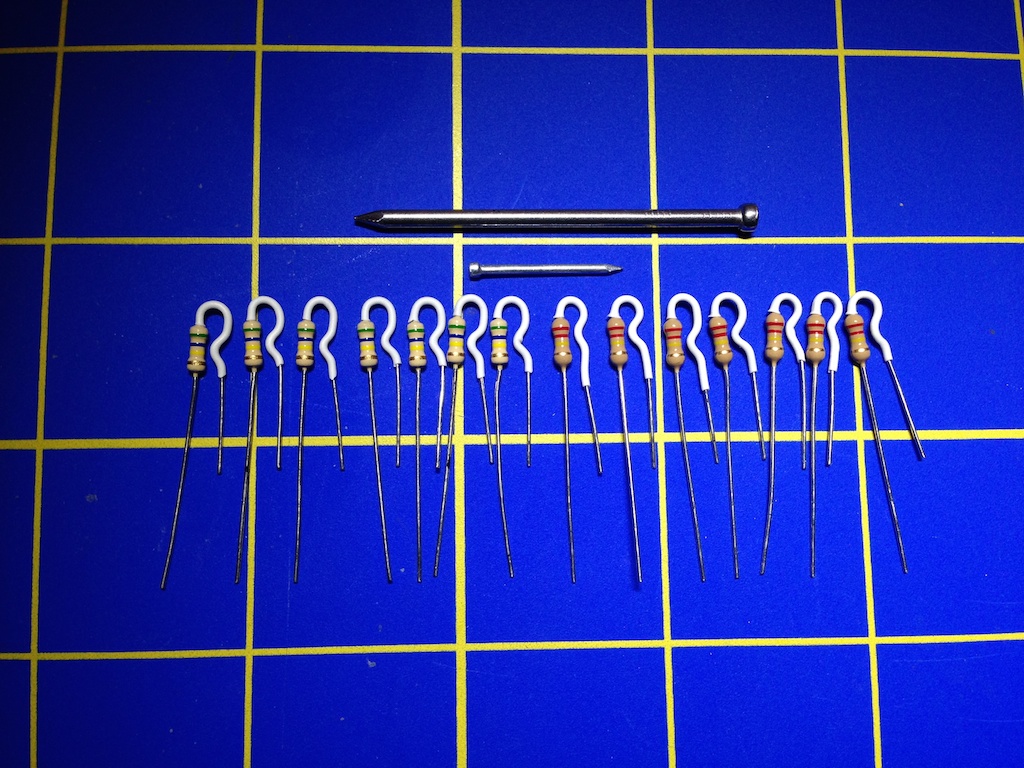
Next step was to prepare the vertically installed resistors. I used two different sized nails to help create smooth bends. I followed the instructions for the first set by creating the two bends then installing the heat shrink. I found it easier with the second set to create just the small bend, install the heat shrink and apply a dose of heat to quick set. After cool down, I created the large bend then hit the component with a final blast from the heat gun to smooth out any small wrinkles.
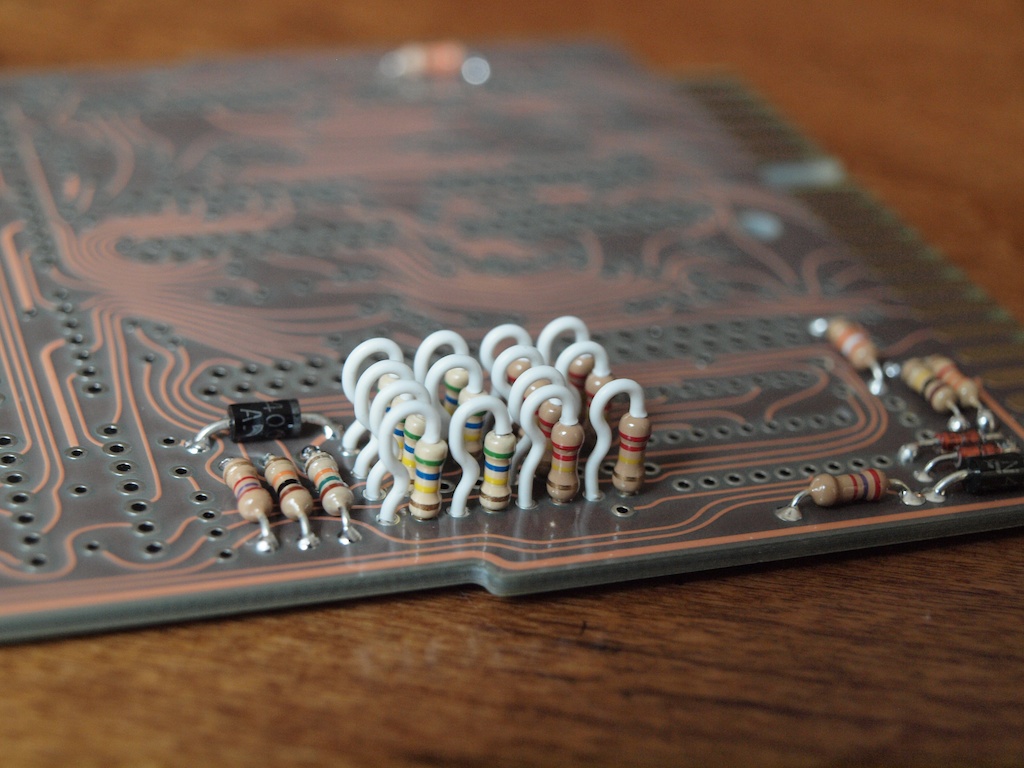
Installing the shrink-wrapped resistors was fun. I cut-off any excess shrink-wrap and first soldered the short-ends to the board, carefully aligning and straightening each row. Once satisfied, I tightened up the long-ends and soldered those, finishing up by making minor adjustments with a small pair of smooth jawed needle-nose pliers.
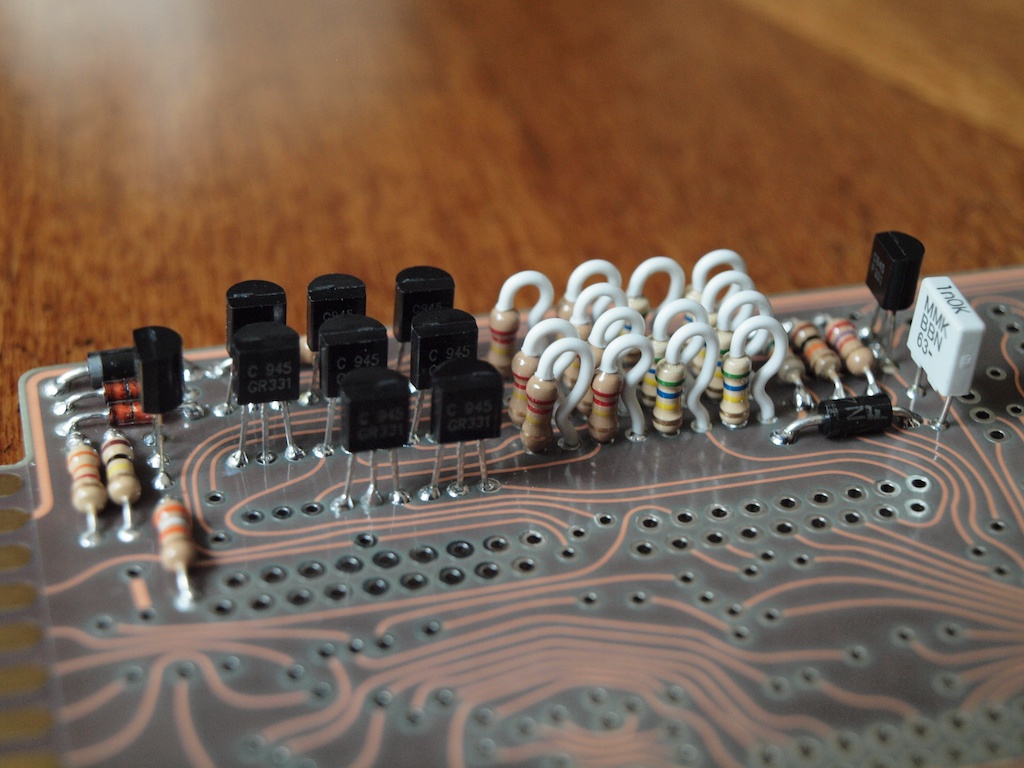
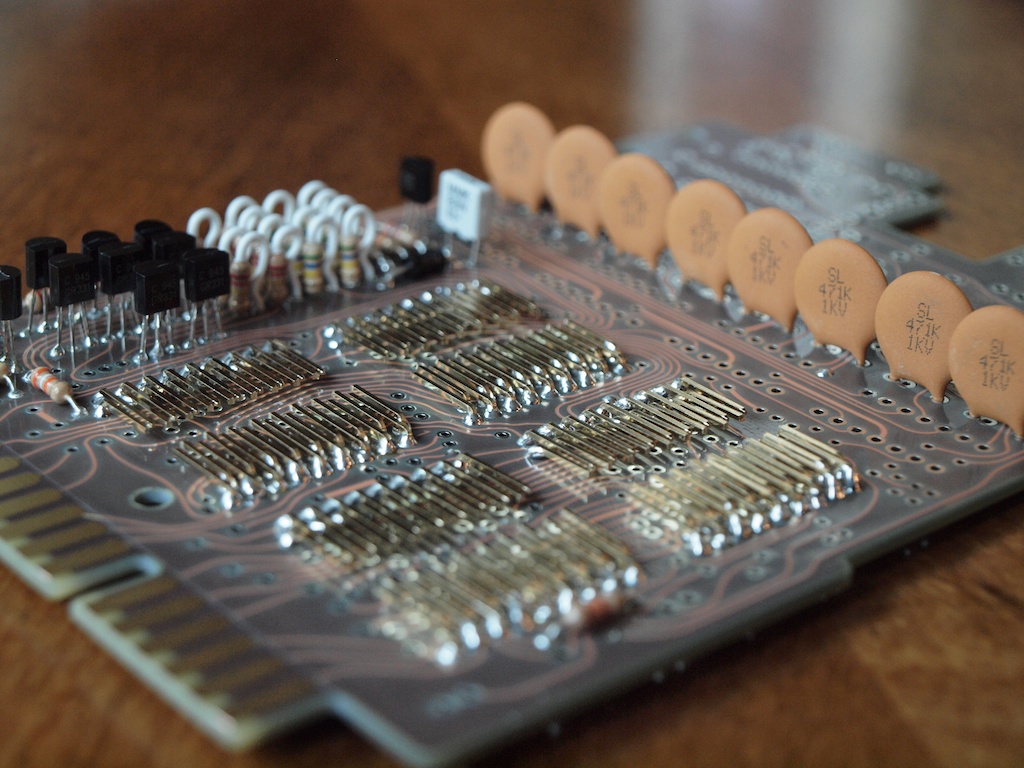
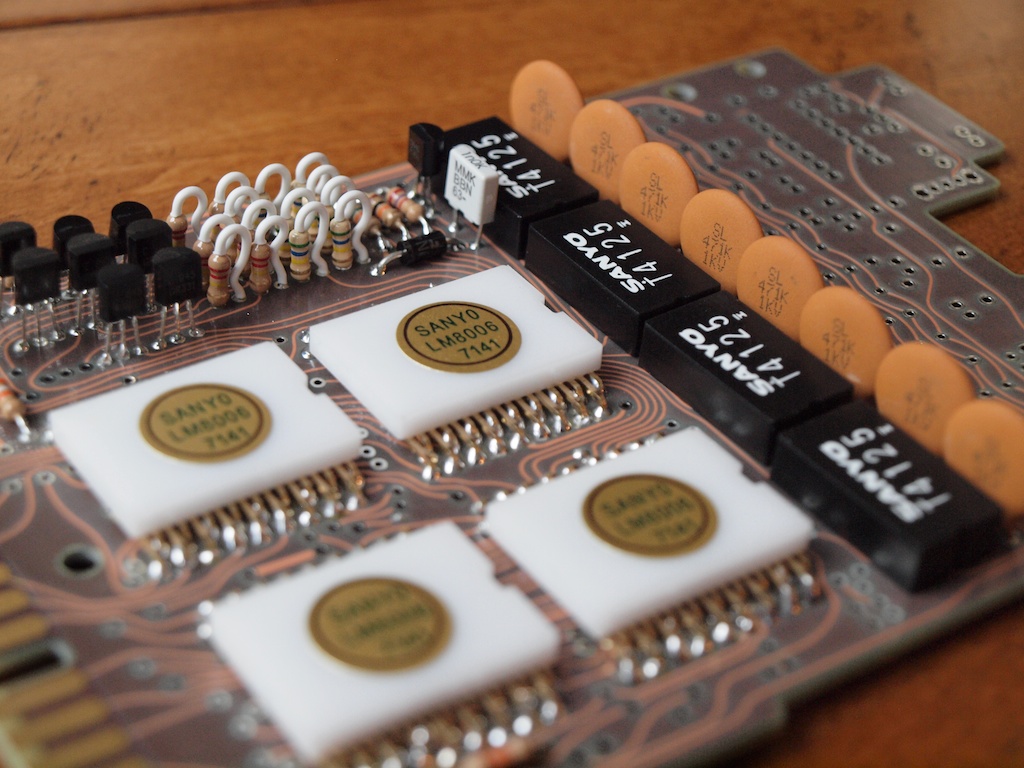
Next up, the (10) transistors. I soldered just the center lead of each, going back and adjusting until they all looked about the same height, then soldered up the other leads and tweaking the orientation for uniformity. I mounted the white capacitor at he same height as the transistors.
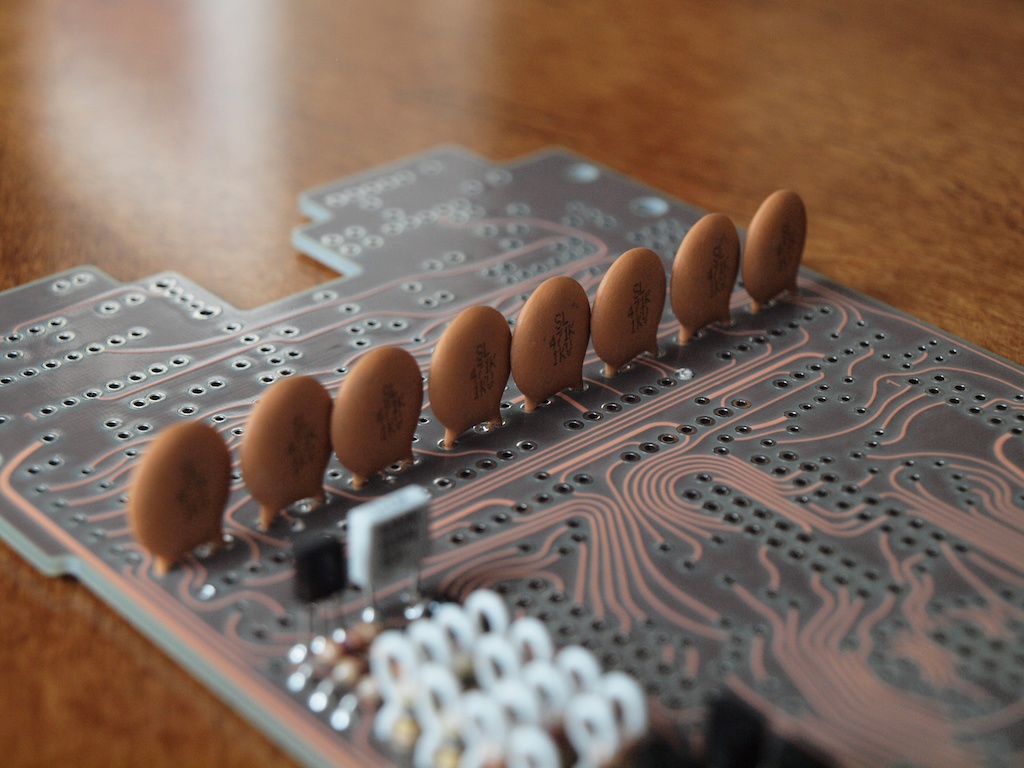
The disc capacitors were simple to install, although I later regretted doing so at this point. In hindsight, I would have done this after the black ICs. More on that later.
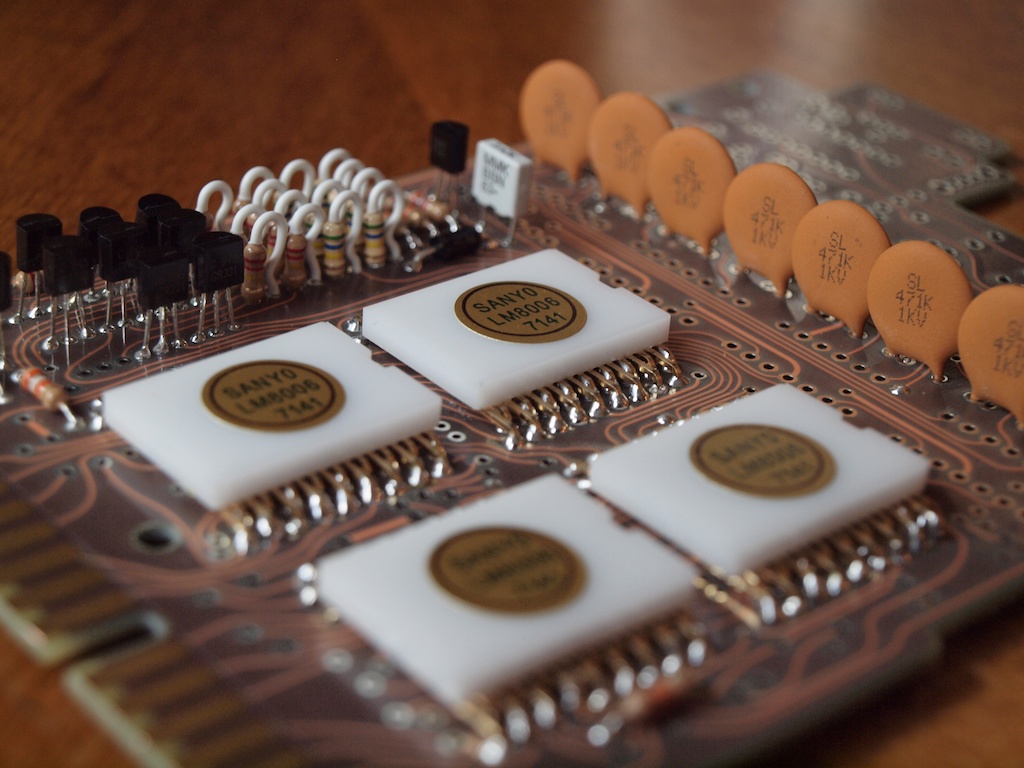
Prepping the faux white IC pins was a bit tedious but it is an ingenious application and a brilliant illusion. I had to snip down the inside pins before I was able to remove the last spacer for each IC.
The white ICs attach to the pins with superglue. I installed one at a time and waited a few minutes between each to ensure a good connection.
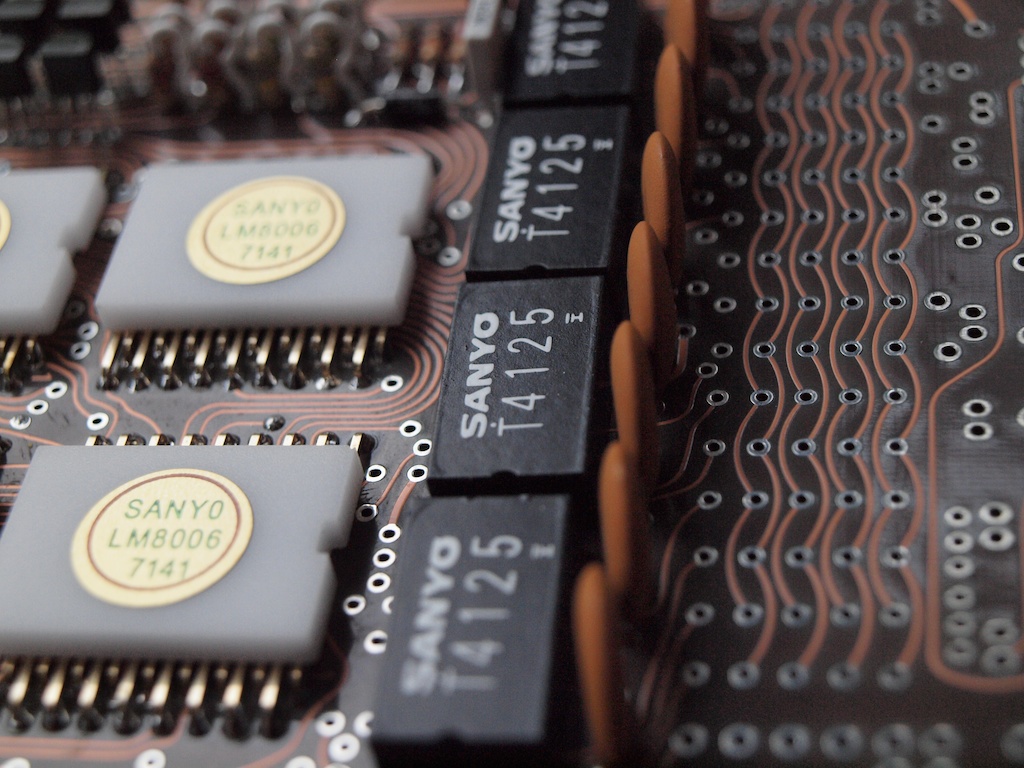
After applying the Sanyo dry rub logos to the black ICs there were some random spots where a bit of the transparent material adhered to the face. The instructions warned of this and I tried to prevent it, but to no avail. Rather than attempt to remove it, I gave each a light coat of clear matte finish and I was really pleased with the result. Doing this toned down the shininess of the acrylic and also made the dry rub transfer look painted on.
From here, I thought installation to the board would be quick & easy. Turns out it was way too quick but not so easy for this old man’s fingers. I screwed up this phase and am really disappointed with myself.
My plan was to roughly follow the same procedure as the white ICs. In this case, I applied superglue to the back of the IC and roughly positioned, planning to adjust before the glue set. With the acrylic to metal, I had about 5 seconds for adjustment. With the acrylic to PC board, the glue set INSTANTANEOUSLY! Fortunately, this first IC looked well positioned and I carefully set the next IC… a bit askew and spaced too far and was unable to move it. DAMN! I was able to set the last two pieces a little better but I discovered my problem was the space between the white ICs and brown capacitors was very small and difficult to access. In retrospect, I should have waited to install the capacitors until after the black ICs had been set to allow for a little extra working room to position properly.
Oh well, lesson learned. If anyone asks, I will note this defect was the result of the cheap unskilled labor utilized by the manufacturer. 
When I did mine, I used some of the extra gold pins to keep the black ic’s lifted. The gold pins were soldered in. An extra step but made glueing and adjusting easier. I also stuck my little thin file between the ic and the disc capacitors to leave the same gap in between when I glued them. Have you been using the gel type superglue? If not, you will want it when you get to the LEDs and nixi tubes.
Great work so far!
Both great ideas. The instructions mentioned the pins but it read like extra work for no benefit. Boy was I wrong! Hopefully other will learn from my mistake. Wish I had your good foresight.
Yep. It is all I use. The regular stuff is just too thin.
Thanks for the comments. Much appreciated.
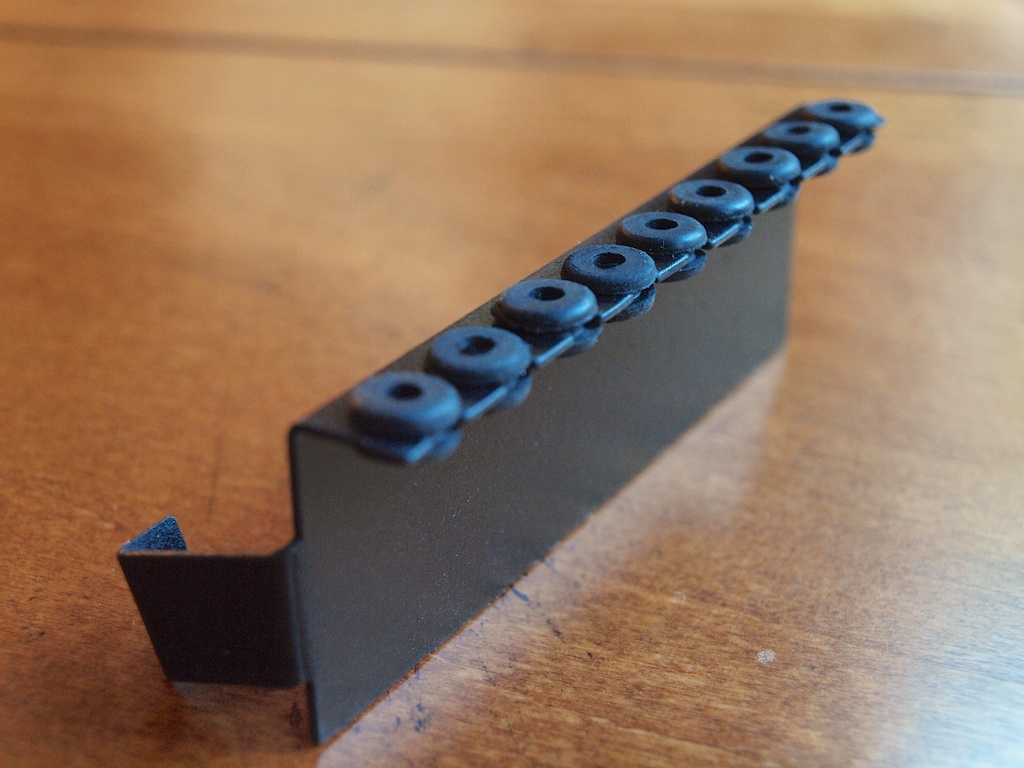
Nixie shelf painted! Flat black base with a clear matte topcoat.
Fancy with the clear coat! I didn’t even bother. Flat black all the way!
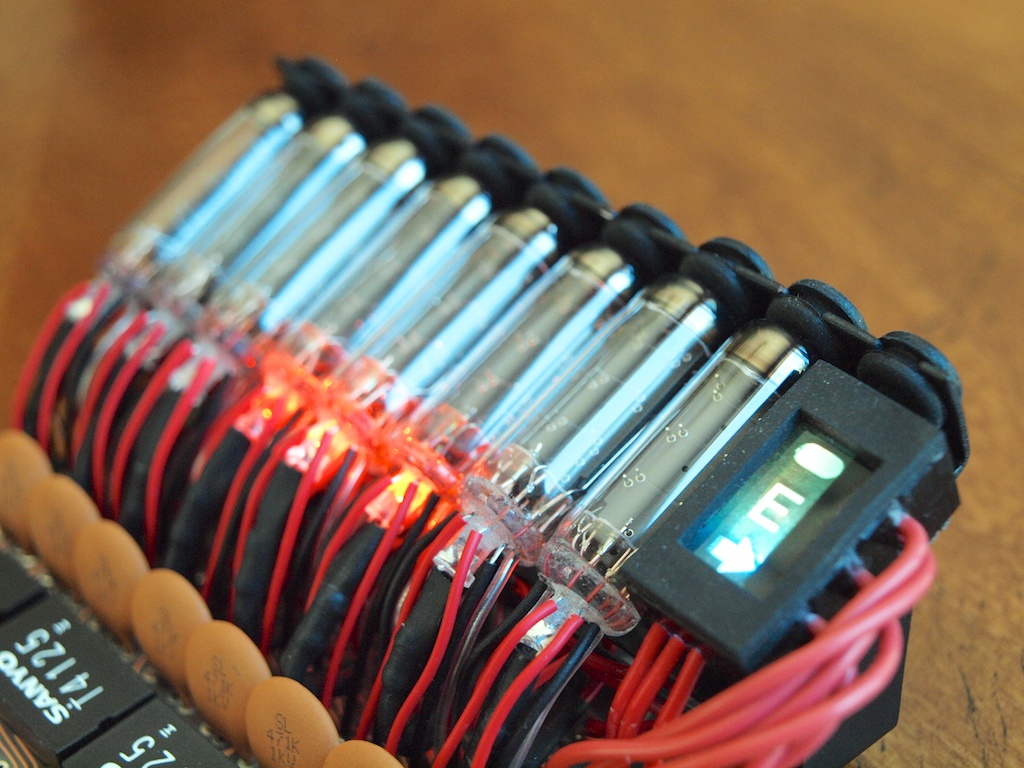
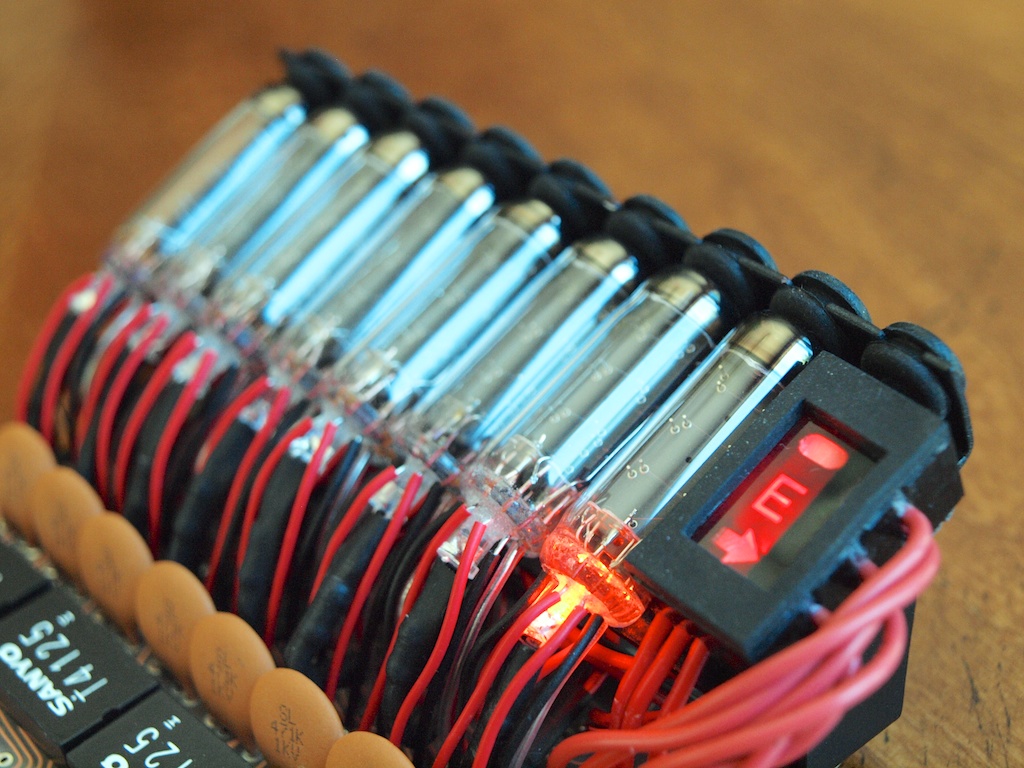
After mounting the components for the chaser circuit, the next step was to mount the LEDs to the Nixie tubes. The instructions warn that the dry time for the superglue on glass is quite long. After testing each LED, I used a “helping hands” component holder to keep the LED in contact with the nixie glass while I sprinkled some baking soda on the exposed superglue. This helped reduce the cure time and the process was slightly easier than I had expected. After drying for several hours, I cleaned off the remaining baking soda dust with a swab and water.
Dealing with all the nixie wires and the associated colored heat shrink was quite fun actually and I found myself soldering these to the board fairly quickly. Unfortunately, once I had finished and tested the circuit, I noticed one of the LEDs was malfunctioning. Not sure if I had screwed it up or it was defective. That was a real bummer because removing the nixie was a real PITA but it was child’s play compared to reinstalling it once I received a replacement LED. Ladies & gentlemen, check those LEDs carefully before you solder to the board! For those interested, acetone melts superglue so removing the LED from the nixie was easy, only required patience.
I wanted to mention the great service I received from the seller, Spongeface. I contacted him, explained the issue and he sent me a replacement LED. He really stands behind what he sells… even when the buyer is a dummy. Doug is real pro.
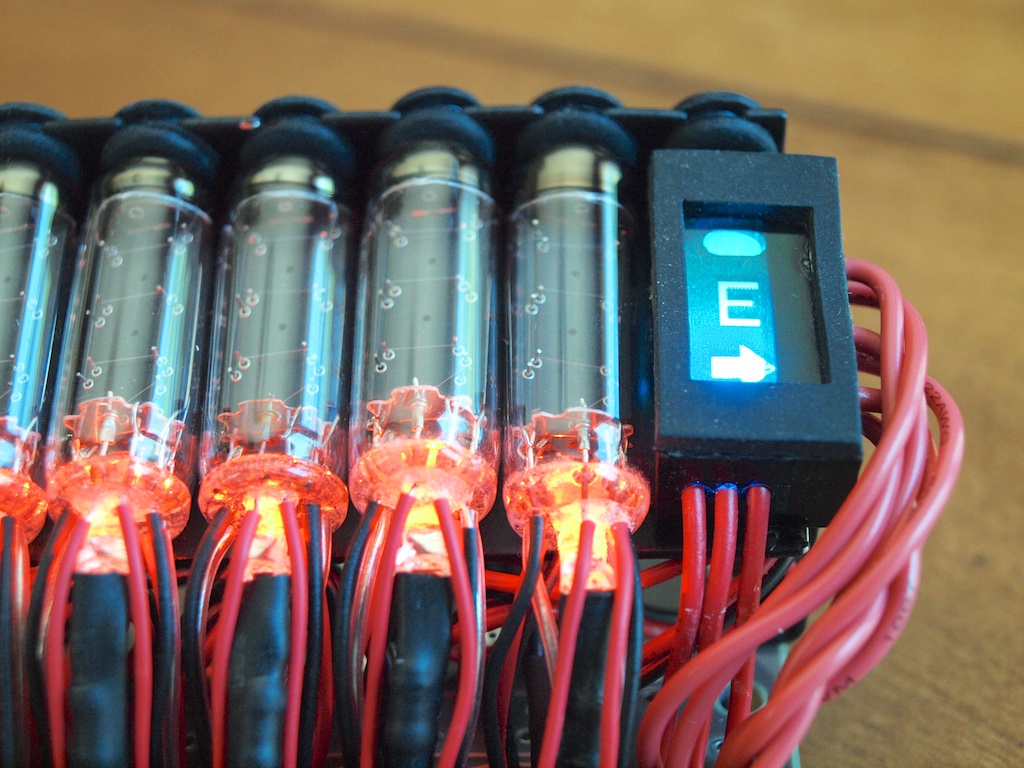
I don’t have much in the way of assembly photos but I was quite pleased with how the LEDs and nixies turned out.
I just can’t help myself! Compelled. To. Clear coat. Aggggh.
Wait. Is that an led in the error box??
Noticed that, huh? Good eye, my friend.
The error box looked a little dark to my eye so I wanted to add a little flair. I picked up a $3 color changing LED from Radio Shack and wired it in to the power supply with a current limiting resistor. It also needed a microswitch to control the color mode. I checked with Doug before I soldered anything just to make sure I wouldn’t have any issues.
The 3 red wires running out the bottom connect to the LED inside the error box.
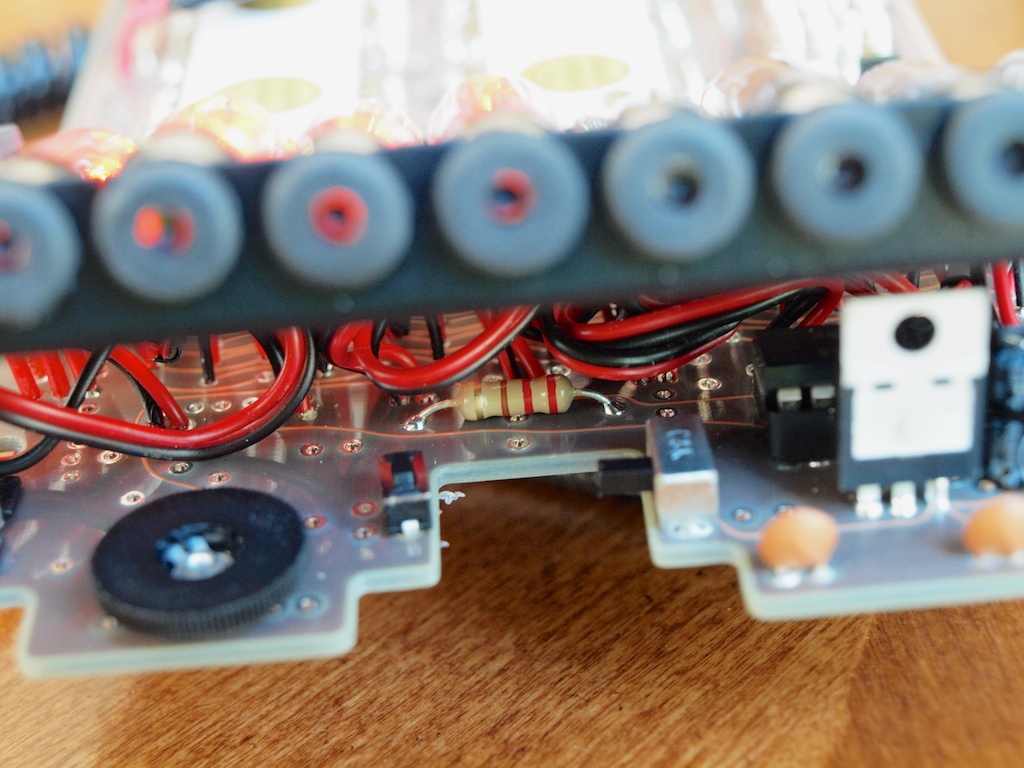
Here’s where I mounted the limiting resistor and color control switch (across from the power switch).
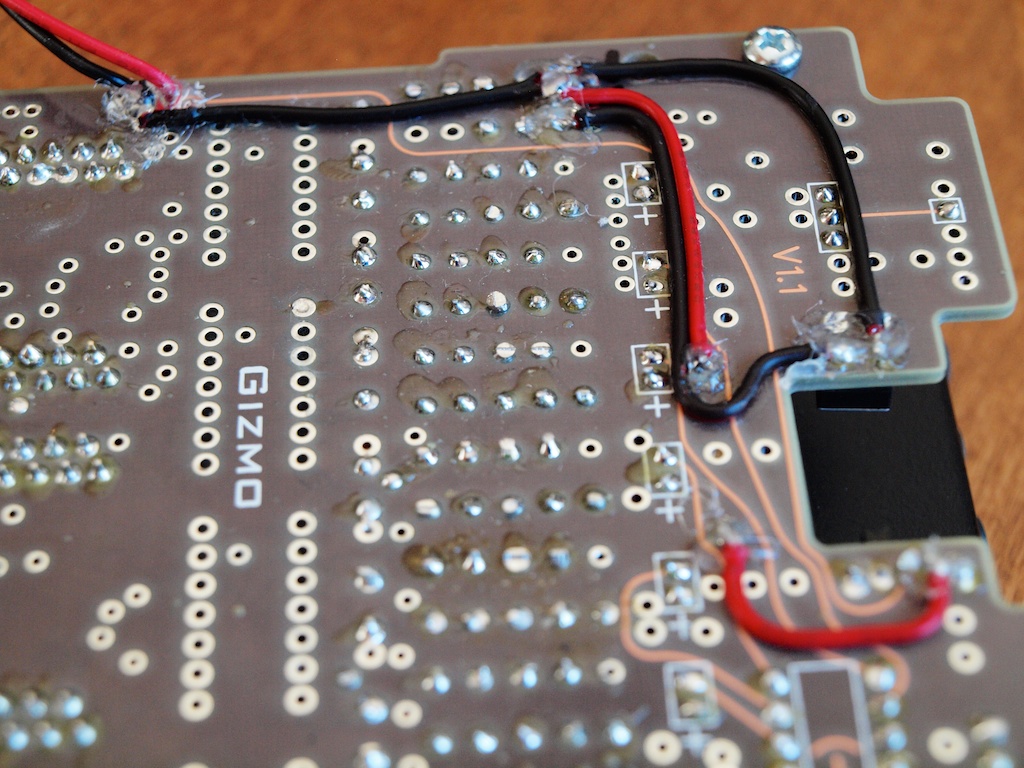
And some old school jumper wiring to connect the error box components into the power supply. After soldering, I glued the wires to the board with superglue and then covered the exposed solder joints in hot glue to insulate.
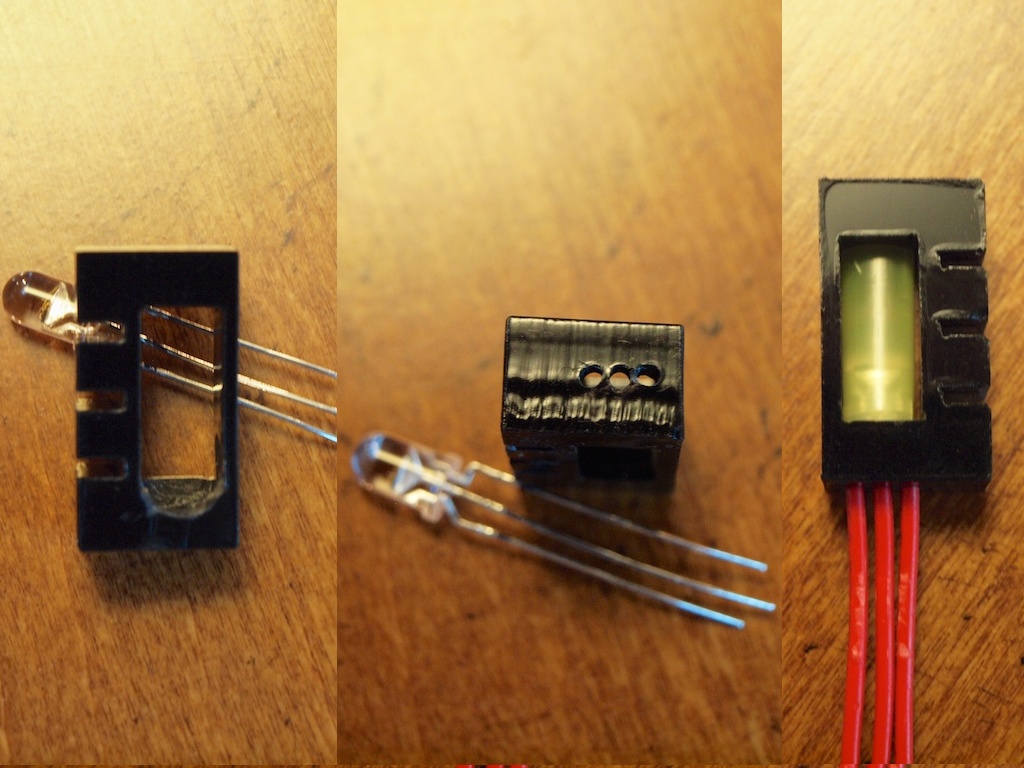
This is how I modified the error box to house a color changing LED. I followed Spongeface’s instructions and used a straw to simulate a small light tube. In this case, a yellow straw with the LED at the base.
Damn thats awesome. Now I have to buy one…